Your PC is stuttering during a browser session with 12 tabs open. Or maybe you're about to buy an upgrade and you have no idea whether your current stick is DDR4 or DDR5. Either way, you need to know what RAM you're running. And no, you don't need to crack open your case to find out.
There are at least five solid ways to check your RAM on a Windows PC, and each one tells you something slightly different. Some tell you the total installed capacity. Others dig into the speed, the channel configuration, and the exact model number of the stick sitting in your slot. Knowing which method to use, and when, is the real skill here.
Why it actually matters
Most people just want to know "how much RAM do I have?" That's fair. But if you're troubleshooting a performance bottleneck, capacity is only half the story. I've worked on systems where someone had 32GB of DDR4 installed, but it was running in single-channel mode because one stick died and nobody noticed. The benchmark numbers were embarrassing. Identifying that took about 90 seconds in the right tool.
So let's go through each method, what it actually shows you, and where it falls short.
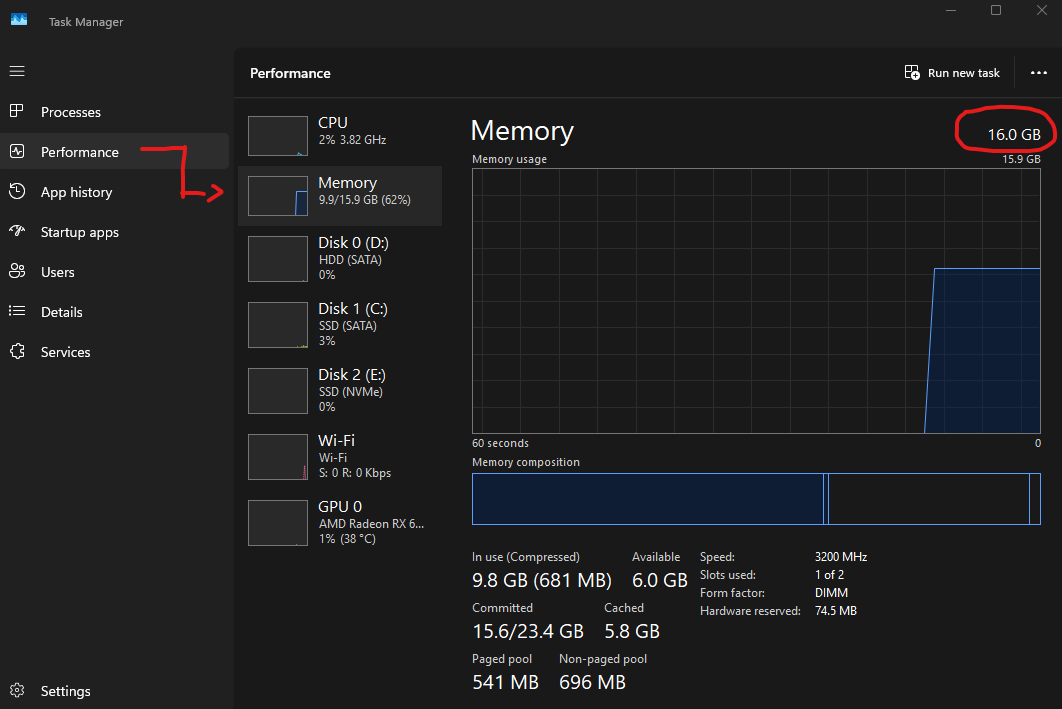
Method 1: Task Manager (the quick check)
This is the first stop for most people, and it's genuinely good for a quick sanity check. Press Ctrl + Shift + Esc, click the Performance tab, then select Memory on the left sidebar. You'll see total capacity, current usage, speed in MHz, form factor (usually DIMM or SODIMM), and slot usage.
Best for
A fast, human-readable summary. Task Manager shows you RAM speed and slot usage in under 10 seconds. It doesn't require any third-party software and it's always accurate for real-time usage stats.
The limitation is that Task Manager won't tell you the exact part number or manufacturer of the stick. If you need to match a specific RAM kit for a dual-channel upgrade, you'll need to go deeper. But for 80% of questions, this screen is all you need.
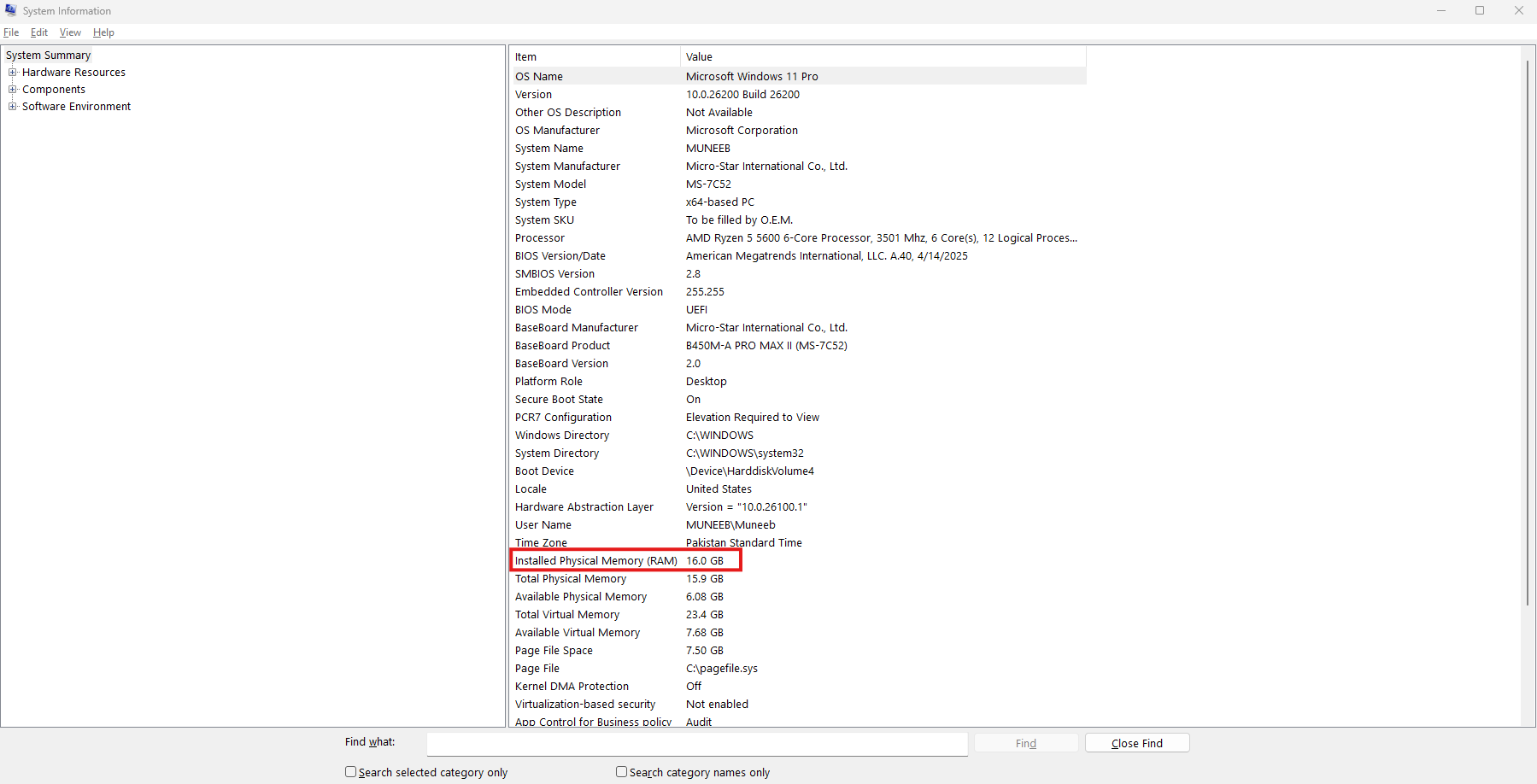
Method 2: System Information (the formal report)
Press Win + R, type msinfo32, and hit Enter. Under the System Summary, scroll down until you see "Installed Physical Memory (RAM)" and "Total Physical Memory." This is the same data Windows uses internally. It's dry, it's not interactive, but it's the most trustworthy raw number Windows will give you without digging into the registry.
In my testing, I found that msinfo32 is particularly useful if you're on a corporate machine with weird IT policies that lock down Task Manager. It almost always works. That said, it doesn't show RAM speed at all, which is a notable gap.
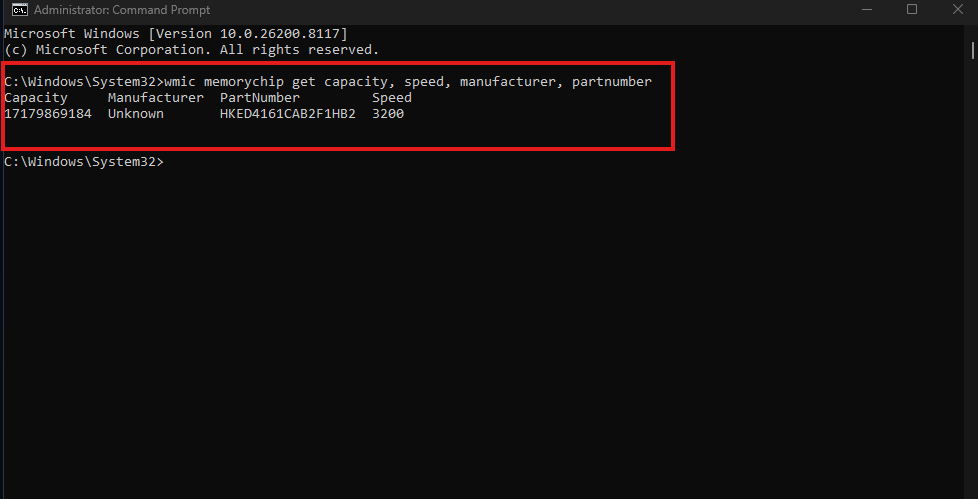
Method 3: Command Prompt (for the detail-oriented)
Open Command Prompt as administrator and run the following command: wmic memorychip get capacity, speed, manufacturer, partnumber. This is where things get interesting. You'll get a per-stick breakdown. Each row in the output is a physical RAM module. You can see the manufacturer name, the exact part number, capacity in bytes, and the rated speed.
Pro tip: The capacity shows in bytes, not gigabytes. Divide by 1,073,741,824 to get GB. An 8GB stick will show as 8589934592.
This is the method I reach for when someone tells me they have "16GB of RAM" but it's performing like 8GB. Running this command has revealed, more than once, that one slot is simply empty or that a stick is misidentified. The output isn't pretty, but it's honest. If you're coming from a background in IT support, this will feel familiar.
Method 4: CPU-Z (the enthusiast's tool)
If you want the full picture, download CPU-Z. It's free, it's been around for over 20 years, and it's the tool most hardware reviewers actually use when they need to verify RAM specs before publishing anything.
Under the Memory tab, you'll see type (DDR4 or DDR5), size, channel mode (single vs dual, which matters a lot for integrated graphics), and the actual running frequency. Note that the frequency shown is usually half the effective speed because DDR RAM is "Double Data Rate." So if CPU-Z shows 1600 MHz, your RAM is DDR3-3200. I was surprised the first time I saw this discrepancy on a client's machine.
The SPD tab is even more revealing. It shows every XMP/EXPO profile the manufacturer programmed into the stick, along with the full manufacturer name and serial number. If you're trying to match a stick for expansion, this is where you get the info you need to order correctly.
Watch out: A lot of PC RAM ships at a conservative base speed and the XMP/EXPO profile is disabled by default. CPU-Z might show you running at 2133 MHz when your kit is rated for 3600 MHz. Check your BIOS if the numbers seem low.
Method 5: Windows Settings (for non-technical users)
Go to Settings > System > About. You'll see "Installed RAM" listed under Device Specifications. That's it. That's the whole method. It just shows total capacity, nothing else. But if someone just bought a laptop and wants to confirm they got what they paid for, this is the simplest path with no navigation risk.
I mention it because not everyone reading this is building a gaming rig. Sometimes the person asking is a student who just wants to confirm their laptop has 8GB before buying a new one. For them, Settings is the right answer.
What the numbers actually mean for your use case
Here's where I want to be direct with you, because a lot of "how much RAM do I need" articles are frustratingly vague. In 2025 and going into 2026, 8GB is the floor for a Windows 11 machine doing basic tasks. It works, but it's not comfortable. If Chrome is eating 4GB on its own and you have a productivity app open, you'll feel the squeeze.
16GB is the practical sweet spot for most people right now. It handles multitasking, light photo editing, and gaming at 1080p without drama. 32GB is where you want to be if you're running virtual machines, doing video editing, or keeping 40 browser tabs open without apology.
The channel configuration matters more than most people realize. Running two 8GB sticks in dual-channel mode isn't the same as one 16GB stick, even though the total capacity is identical. Dual-channel roughly doubles the memory bandwidth, which makes a noticeable difference in CPU-heavy tasks and especially in systems using integrated graphics, like an AMD Ryzen chip with a Radeon iGPU. The bandwidth difference there isn't subtle.
Frequently asked questions
Yes. Task Manager shows the speed in MHz under the Performance > Memory tab. No download required. If you want the per-stick breakdown, the WMIC command line method also works natively.
CPU-Z under the Memory tab shows "Dual" or "Single" next to Channel. Task Manager doesn't tell you this, which is one reason CPU-Z is worth installing if you care about performance.
Restart and enter your BIOS (usually Del or F2 at boot). Look for an XMP or EXPO setting and enable it. This lets your RAM run at its rated speed instead of the conservative JEDEC default. It's perfectly safe and most enthusiast-grade kits ship with XMP profiles ready to go. If you are building a new system and want to ensure EXPO works seamlessly, check out our guide on the Best AM5 Motherboards for Gaming.
No, all five methods work identically on both. The only difference is that laptop RAM (SODIMM) is usually soldered or very difficult to upgrade, so knowing what you have matters more before you buy, not after.
Last verified: April 2026 · Tested on Windows 11 25H2