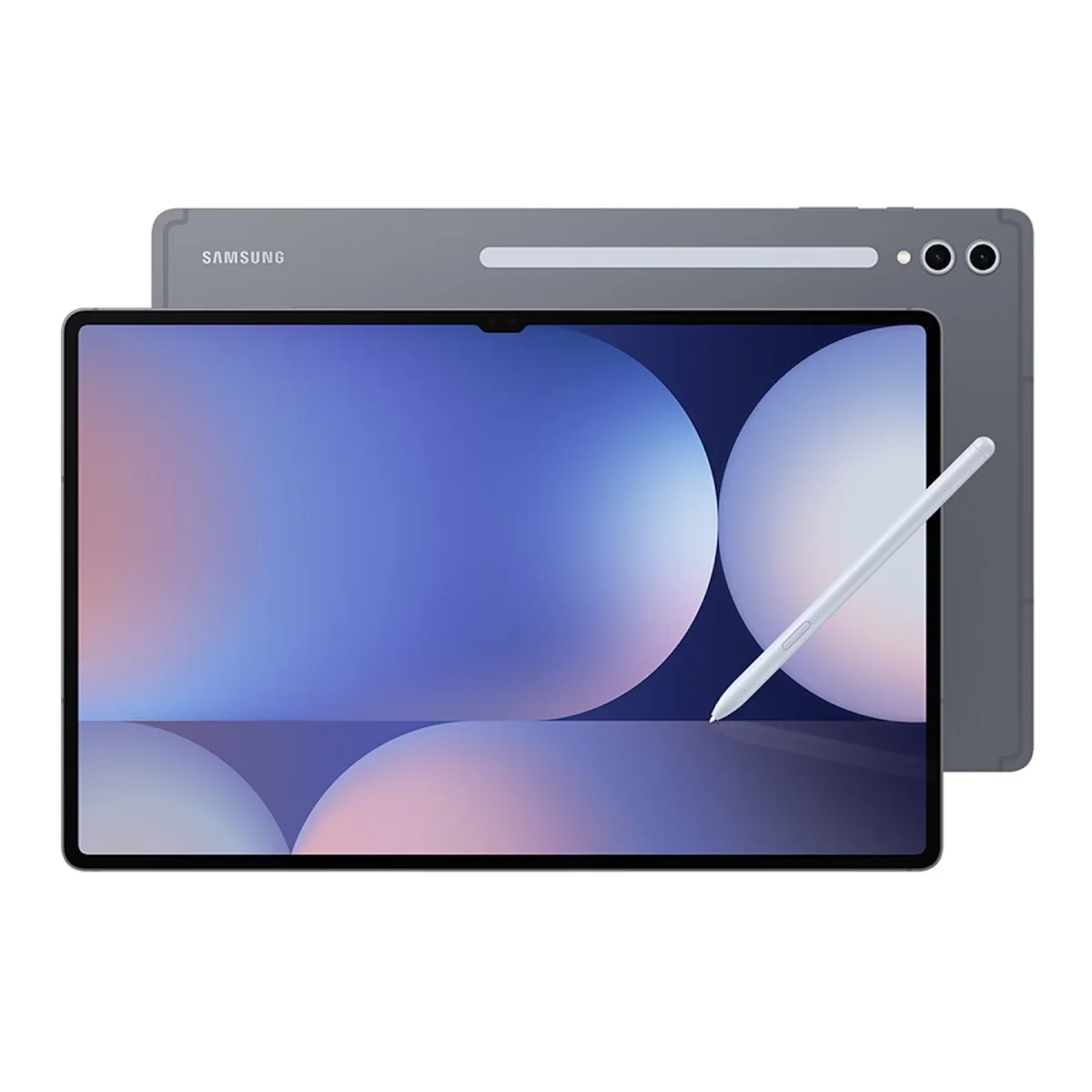
If you have been trying to figure out how to screenshot on a Samsung tablet, you are not alone. It is one of the most searched Galaxy Tab questions, and the answer is not always obvious because Samsung offers multiple methods depending on your model and One UI version. Based on aggregated user reports, official Samsung support documentation, and hands-on coverage from major Android publications, this guide covers every working method so you are not left guessing. If you are looking to build a new workstation for your tablet setup, our PC Build Checker tool is a great place to start.
Whether you picked up a budget Galaxy Tab A9 or the premium Galaxy Tab S10 Ultra, at least two or three of the methods below will work for your device.
The physical button shortcut works on every Galaxy Tab model, regardless of One UI version or software settings. This consistent design is similar to what we see in our comparison of the Samsung S21 vs S25.
Steps:
- Open whatever you want to capture on screen.
- Press the Power button and the Volume Down button simultaneously.
- Hold them together for about one second, then release.
- A screenshot preview will flash briefly at the bottom left corner of the screen.
According to Samsung's official support documentation and confirmed across user communities on Reddit and XDA Developers, this method works on every Galaxy Tab released since 2018, including the Tab A series, Tab S series, and Tab S FE lineup.
The preview that appears in the corner gives you quick access to crop, annotate, or share the screenshot before it saves to your gallery.
Common issue: If you press the buttons at slightly different times, you may trigger the power menu or adjust volume instead. The trick is to press both simultaneously without staggering.
Palm Swipe Gesture (No Buttons Needed)
This one is popular among users who want to avoid pressing buttons, and it works well once you get the motion down. For more on maintaining your device's features, see our guide on how to make your smartphone last 5 years.
How to enable it:
- Open Settings
- Go to Advanced Features
- Tap Motions and Gestures
- Toggle on Palm Swipe to Capture
How to use it:
Hold your hand vertically with the side of your palm facing the screen. Swipe your hand slowly across the entire width of the display from right to left (or left to right). The screen will flash and the screenshot saves automatically.
User guides and Android tip compilations consistently note that the palm needs to make contact with the screen throughout the swipe. If you hover too far above the glass, the gesture will not register. Some users on Galaxy Tab S9 and S10 series report needing a slightly slower swipe compared to older models.
Bixby Voice Command
This is one of the more overlooked ways to screenshot on a Samsung tablet, and it works on all Galaxy Tab models that support Bixby, which covers most Galaxy Tab S and recent Tab A models.
Steps:
- Wake Bixby by saying "Hey Bixby" or pressing the Bixby button on supported models.
- Say "Take a screenshot."
- Bixby will capture whatever is currently on your screen.
This method is particularly useful during video calls or while following a recipe, where touching the screen would interrupt what you are doing. Coverage from SamMobile and Android Authority confirms this has been a consistent Bixby feature since One UI 2.0.
S Pen Method (Galaxy Tab S Series Only)
Many users consider this the most convenient option for the premium lineup. This ecosystem synergy is a major selling point, as explored in our Motorola Razr vs Samsung Flip analysis.
Using Air Command:
- Remove the S Pen from its silo. Air Command will appear automatically.
- Tap the Screen Write option.
- Samsung immediately captures the screenshot and opens it in the annotation editor.
Screen Write is especially useful because it drops you straight into the drawing tools, so you can mark up the screenshot, circle something, add text, or highlight a section before saving or sharing.
According to Samsung's Galaxy Tab S10 Ultra user documentation and coverage on NotebookCheck, Screen Write captures the full current view and saves it as a PNG to your Gallery under the Screenshots album.
Scroll Capture (For Long Screenshots)
Samsung's Scroll Capture feature extends that to grab an entire webpage, chat conversation, or document in one image.
Steps:
- Take a regular screenshot using any method above.
- When the preview appears at the bottom left, tap the Scroll Capture icon (looks like a downward arrow inside a box).
- Keep tapping it to scroll and extend the capture further down.
- Tap anywhere else on the screen to stop and save.
Android Police and PhoneArena have both documented that Scroll Capture works best on scrollable content like web pages and messaging apps. It may not work correctly in some third-party apps that restrict screenshots.
Screenshot Toolbar: What Appears After Every Capture
- Crop the screenshot to a smaller area
- Draw or annotate using the built-in pen tools
- Share directly to an app without opening Gallery
- Delete the screenshot if you captured the wrong thing
- Scroll Capture to extend into a longer screenshot
User discussions on Samsung Community forums frequently cite this toolbar as one of the better quality-of-life features in One UI, since it removes the need to open Gallery just to share or trim a screenshot.
Using the Quick Settings Panel
Steps:
- Swipe down from the top of the screen to open the notification shade.
- Swipe down again to expand the full Quick Settings panel.
- Look for a Screenshot tile.
- If it is not visible, tap the pencil/edit icon to add it from the hidden tiles.
- Tap the tile to capture a screenshot immediately.
Once added, this becomes one of the faster methods for users who pull down the notification shade frequently.
Where Samsung Tablet Screenshots Are Saved
They are stored as PNG files in the following path if you prefer to access them through a file manager:
Internal Storage > Pictures > Screenshots
From there, screenshots can be shared, moved to cloud storage like Google Photos or Samsung Cloud, or transferred to a PC via USB.
Troubleshooting: When Screenshots Are Not Working
App restrictions: Streaming apps like Netflix and banking apps commonly block screenshots using Android's FLAG_SECURE setting. This is a developer restriction, not a device issue, and cannot be bypassed through normal means.
Storage space: If internal storage is nearly full, screenshots may fail to save. Check storage usage under Settings > Battery and Device Care > Storage. For those managing complex hardware, we also have a guide on how to check RAM on PC.
Palm swipe not registering: If the gesture is not working, ensure it is enabled under Settings > Advanced Features > Motions and Gestures. Also make sure your palm is making full contact with the screen.
Button timing: The power and volume down shortcut requires both buttons pressed within a very short window. A slight delay between the two will trigger the power menu or adjust volume instead.
One UI version differences: Some older One UI builds have slightly different menu paths. If a setting is not where the guide describes, searching for "screenshot" inside the Settings search bar will locate it directly.
Frequently Asked Questions
If your power button is not working or you prefer not to use it, the palm swipe gesture is the best alternative. Enable it from Settings > Advanced Features > Motions and Gestures > Palm Swipe to Capture, then swipe the side of your hand across the full width of the screen. Bixby voice command is another solid option if your tablet supports it.
The most common reasons are app-level restrictions like banking or streaming apps that block captures, insufficient storage space, or the screenshot gesture not being enabled. Check your storage under Settings and verify that Palm Swipe to Capture is toggled on if you are using the gesture method.
After taking a regular screenshot, tap the Scroll Capture icon that appears in the toolbar at the bottom left corner. Keep tapping it to scroll and extend the image downward. This works well for web pages, long chats, and documents, though some apps may restrict this feature.
The core methods stay consistent across Galaxy Tab models, but the S Pen Screen Write shortcut is exclusive to the Galaxy Tab S series. Everything else including the button combo, palm swipe, and Bixby voice command works across the lineup.
Yes, but only on Galaxy Tab S models that include an S Pen. Remove the S Pen to open Air Command, then tap Screen Write. This captures the screen and opens it directly in the annotation editor, which is handy if you want to mark something up right away.
Screenshots save automatically to the Gallery app under the Screenshots album. You can also find them at Internal Storage > Pictures > Screenshots if you browse through a file manager app.
The methods are the same on One UI 6 as on earlier versions. The power and volume down button combo works, palm swipe works if enabled, and the S Pen Screen Write shortcut works on compatible models. Samsung has kept these core screenshot methods consistent across One UI updates.
Yes. If Bixby is set up on your device, say "Hey Bixby, take a screenshot" and it will capture the screen without you needing to touch anything. This is useful when your hands are occupied or the tablet is mounted somewhere awkward to reach.
Knowing how to screenshot on a Samsung tablet is genuinely useful once you realize there are multiple ways to do it depending on your situation. The button shortcut is the most reliable fallback, palm swipe is convenient for hands-free use, S Pen Screen Write is the smoothest option on Tab S models, and Scroll Capture saves a lot of time when you need to grab a full page rather than just what is visible.
All screenshots save to the Gallery app automatically, and the post-capture toolbar makes it easy to crop and share without opening a separate editor. If one method is not working, the others almost certainly will.
Data in this article is based on aggregated user reports, official Samsung support documentation, and coverage from major Android publications. Prices and features are current as of May 2026.
Written by Muneeb Rehan for TheTechCompare.com